3rd of August, 2026
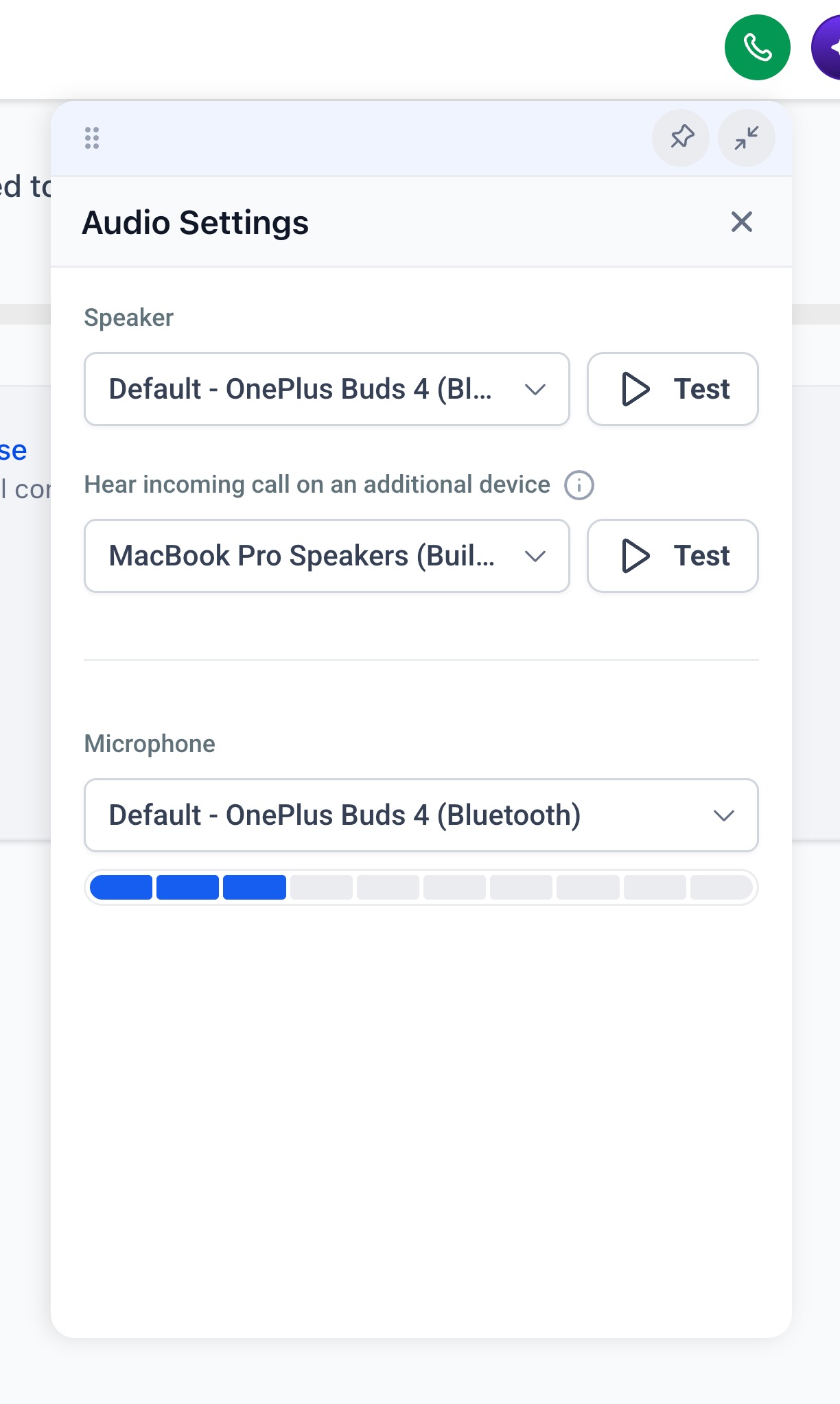
You can now choose exactly which devices ring and handle audio for your calls in the web dialer.
How to use this?
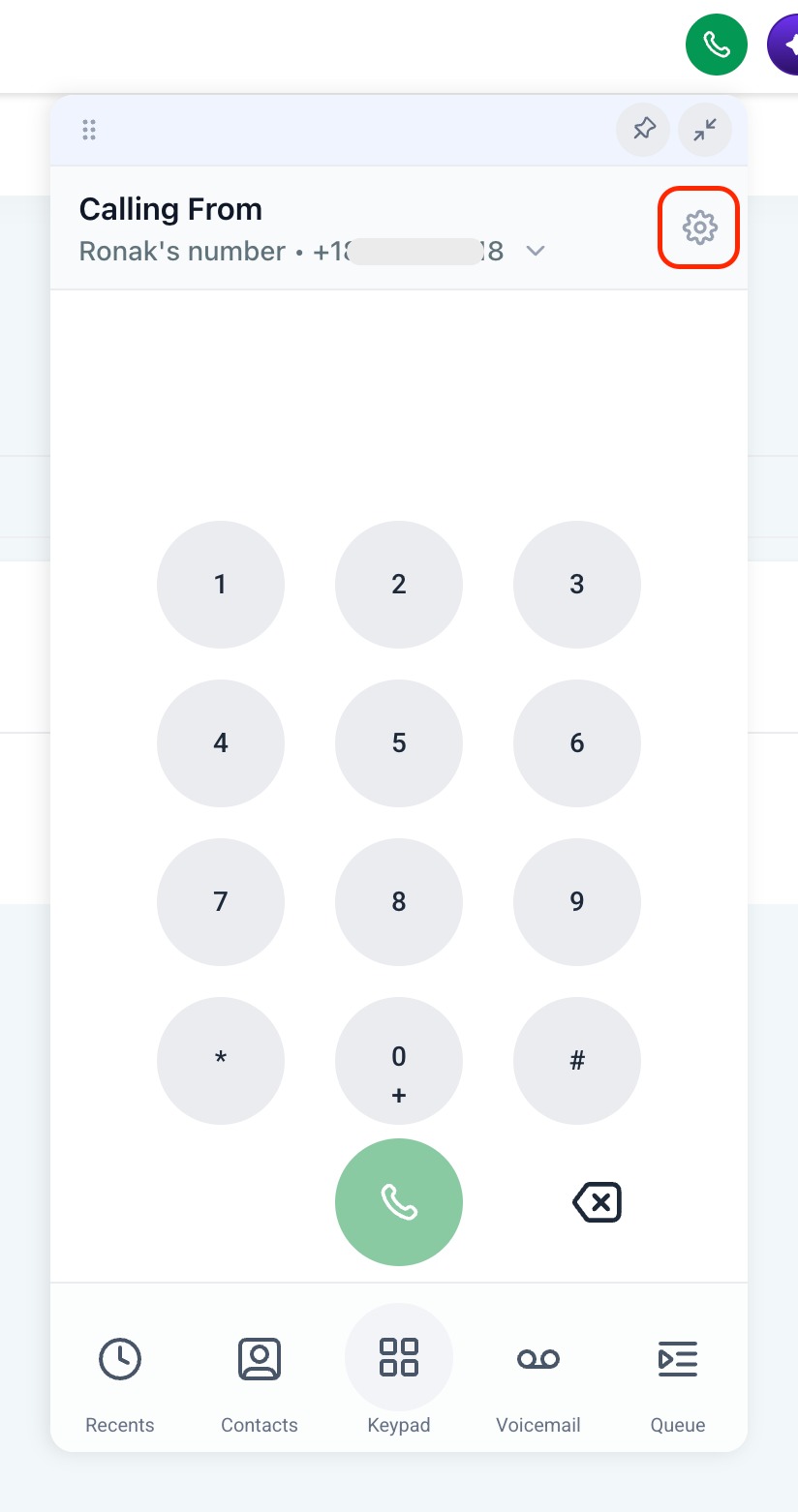
Open audio settings from the gear icon in the dialer header.
Pick your main speaker for call audio, optionally ring one additional device at the same time (like a headset plus your desk speaker), and choose which microphone to use.
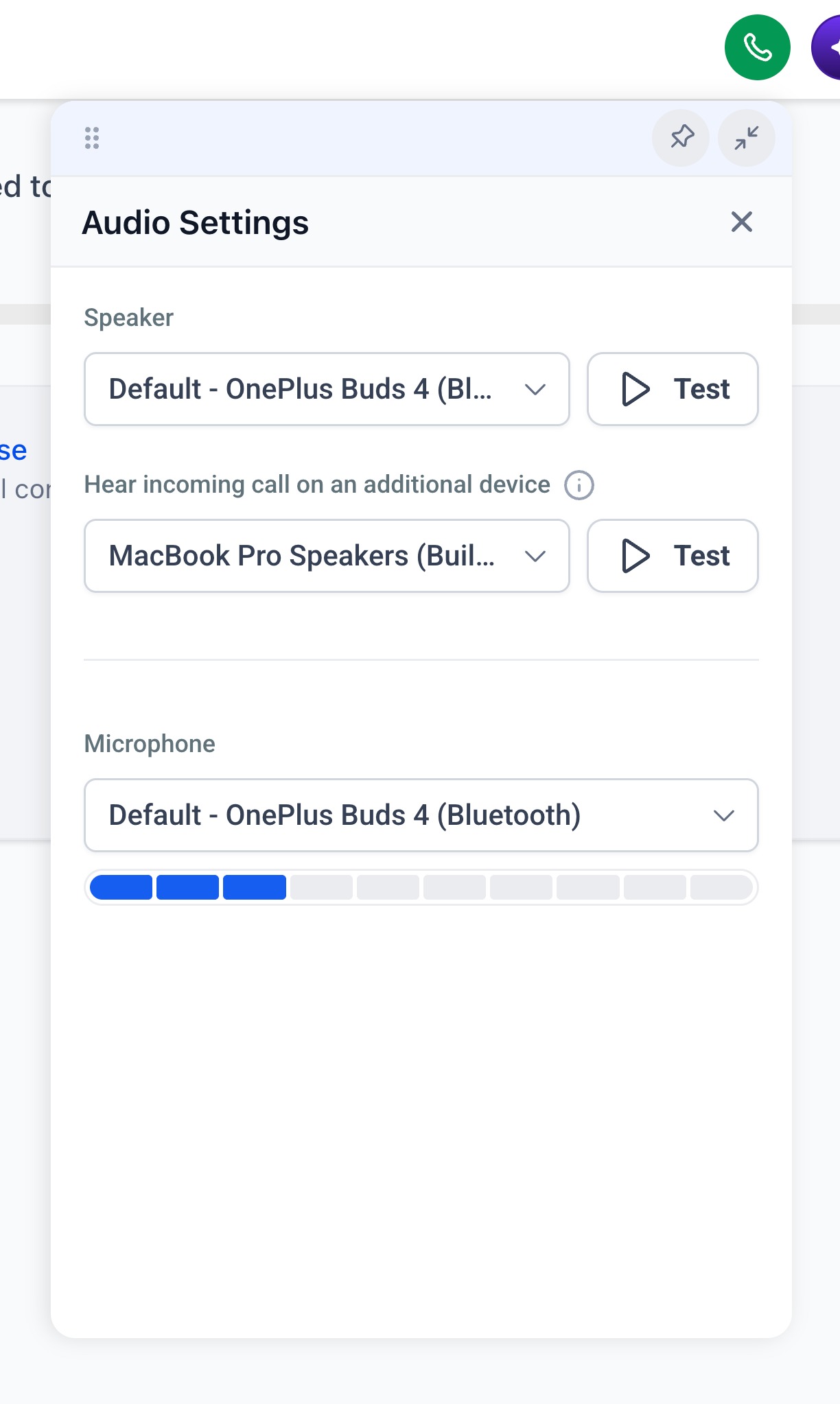
Test buttons let you preview the speaker and additional device before saving, and the microphone picker shows a live volume meter so you know it's picking up sound.
---
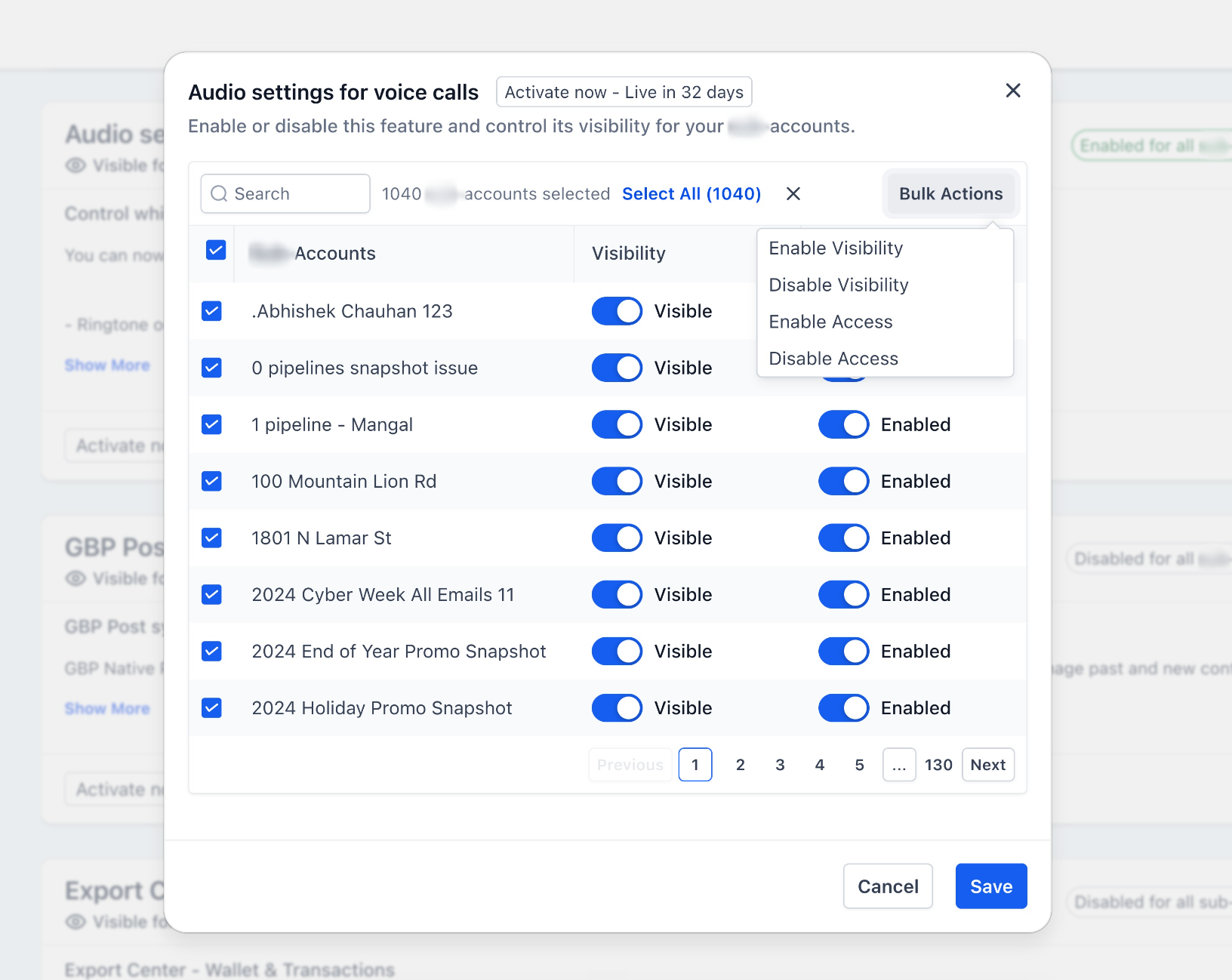
This is available via Labs. You can enable it under Labs by following these steps:
- Go to account settings > Labs
- Look for "Audio settings for voice calls"
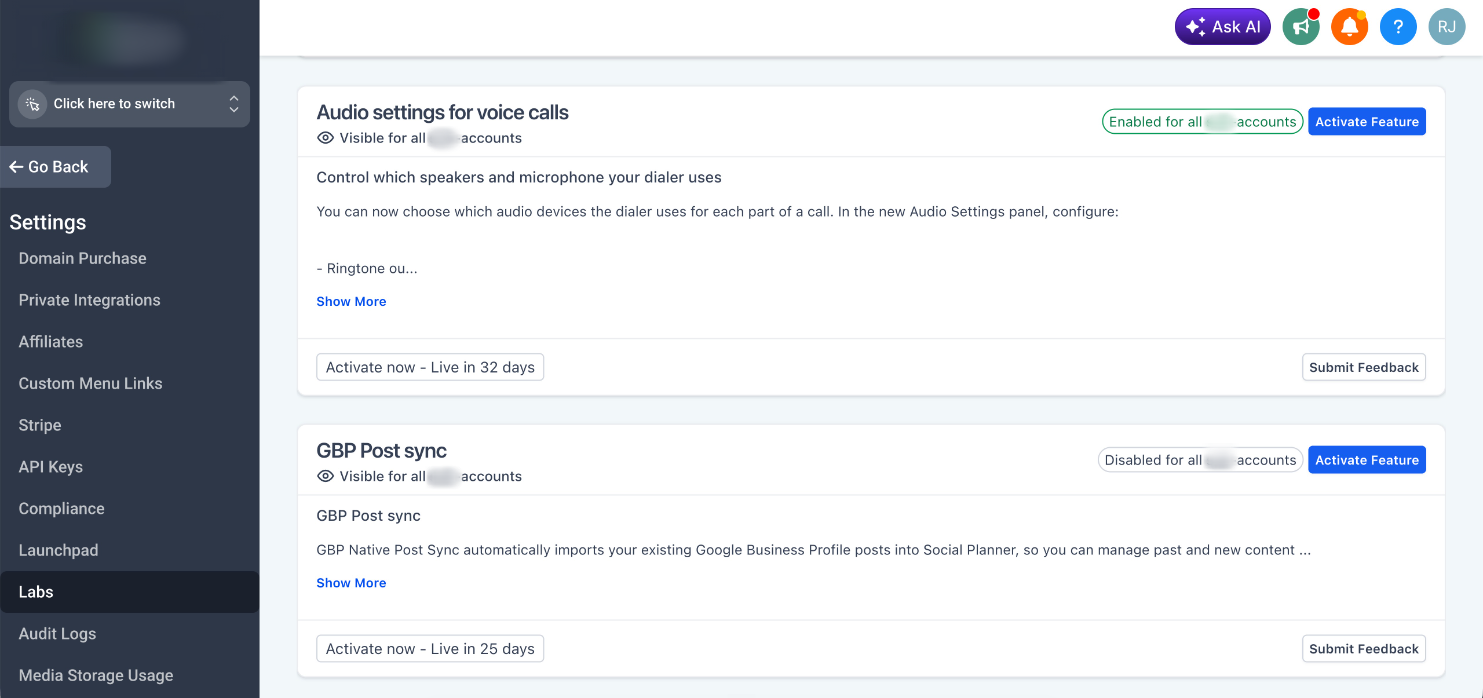
- Click on "Activate Feature"
- Bulk select and enable it for the locations you want
Was this article helpful?
That’s Great!
Thank you for your feedback
Sorry! We couldn't be helpful
Thank you for your feedback
Feedback sent
We appreciate your effort and will try to fix the article